
The “study planner” is an overview of your degree program, where you can register and de-register from examinations and change any registrations you have made previously. To use it, you must be signed in to campo in the role “Student”.
We would advise exchange students (Erasmus students) to refrain from using the planner, as the large number of courses they can choose from makes it take a very long time for the page to load. If you do decide to use the planner, please be patient until the page is loaded and follow the instructions below.
Where can I find the study planner?
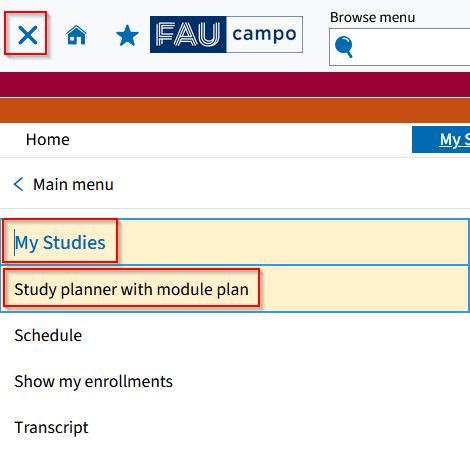
You can view your study planner by accessing the main menu and following this path:
- “My Studies”
- “Study planner with module plan“
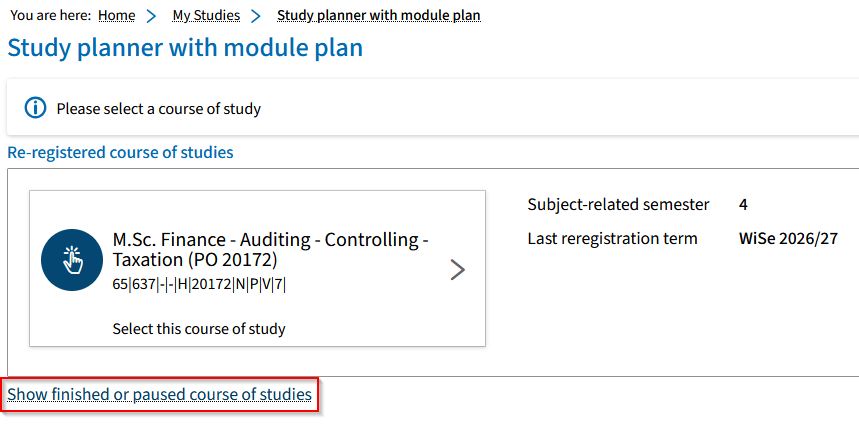
If you are studying more than one degree program, you are shown all active degree programs and you can select the one you want to display by clicking on it. You can use the function “Show finished or paused course of studies” to display degree programs you have paused or have already completed.
If you are shown the module plan, you can change to the degree program and examination regulations view by selecting “Show examination regulations”.
You can always return to the selection window by clicking on “Select other course of studies”.
The study planner displays a hierarchy showing the degree, levels, modules, examinations and teaching units. It is not meant to be used to create a schedule, rather it shows all the elements linked to your degree program and your status for each of them.
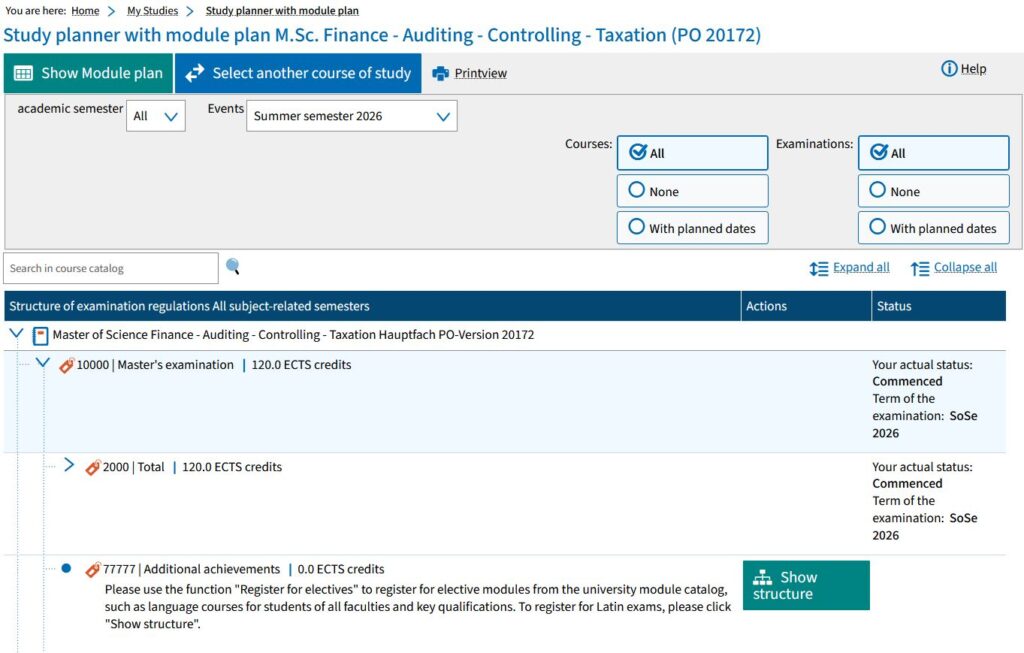
Each element has its own icon:
- Degree: white, closed book
- Level: orange marker
- Module: green jigsaw puzzle piece
- Examination: yellow star on a red ribbon
- Course: blue; open book
You can show or hide the different levels manually by clicking the blue arrow icon. You can also show or hide all levels at once by clicking “Show all” or “Hide all”.
In the box next to the magnifying glass symbol you can search for elements according to their title or number.
During the examination registration period, a link for registering for the examination is also always available.
If you cannot find an examination, a module or a lecture in your study planner, this means that you are not (yet) required to take it for your degree program. Please contact your degree program coordinator.
If you would like to view more detailed information on a module, examination or teaching unit, you can click directly on its name.
In the case of examinations, you can find the deadlines for registration or withdrawal here. If the registration period is currently active, you can also find the button for registering for the examination under “Actions”.
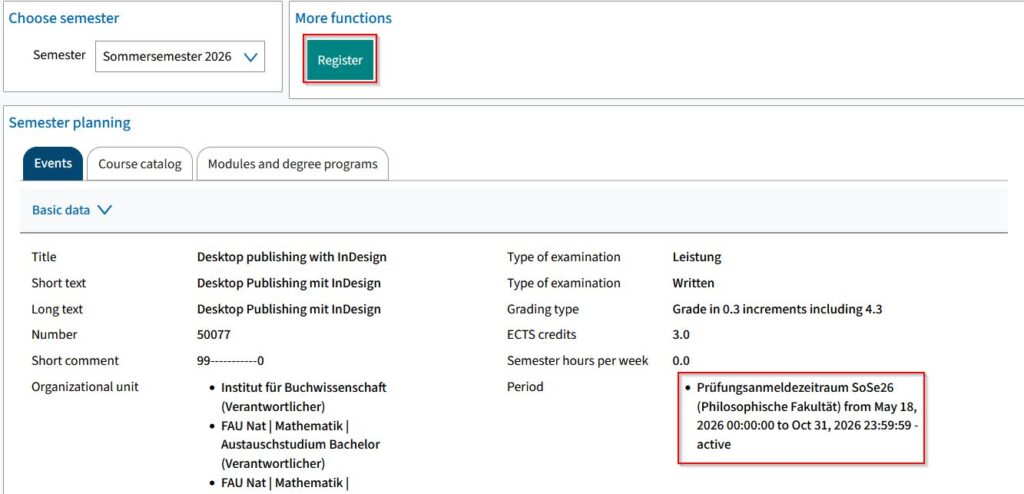
If you do not register for an examination via the study planner, the examination achievement will be automatically entered in campo at the first suitable place. If that is not where you would like it to be entered, the records must be changed retroactively by the Examinations Office, which may lead to complications, particularly in the case of compulsory elective modules.
For events/courses, this is where you can find the link to StudOn:
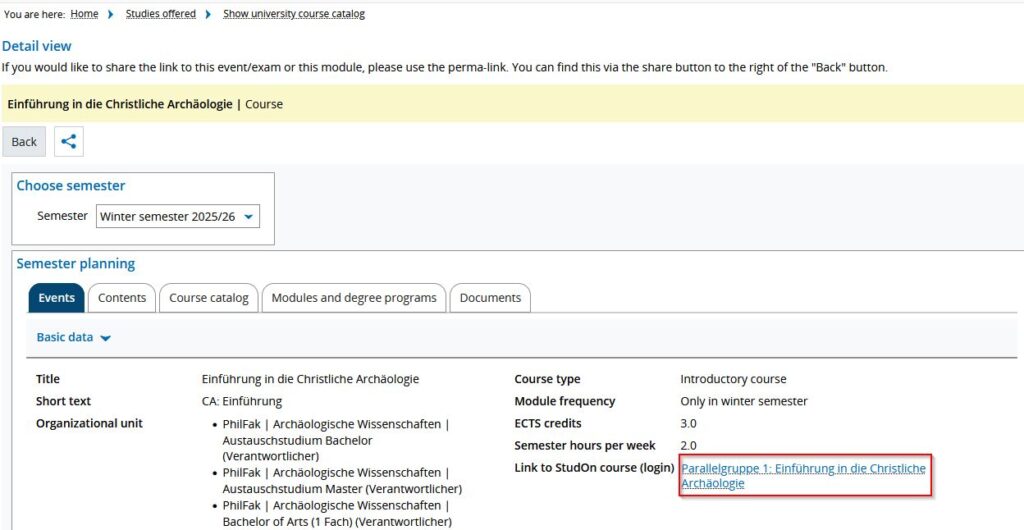
Students must always register for examinations in campo, and for courses in StudOn, if applicable.
The module plan shows all modules in the degree program, but you may not need to take them all.
Further details, for example which modules must be taken in the different sections of your degree program (compulsory, compulsory elective and elective modules), are set out in the examination regulations for your degree program.
The module plan is a function that is available in the study planner. Open the study planner and click “show module plan”. This takes you to an overview of all modules in the degree program organized by the recommended semester of study.
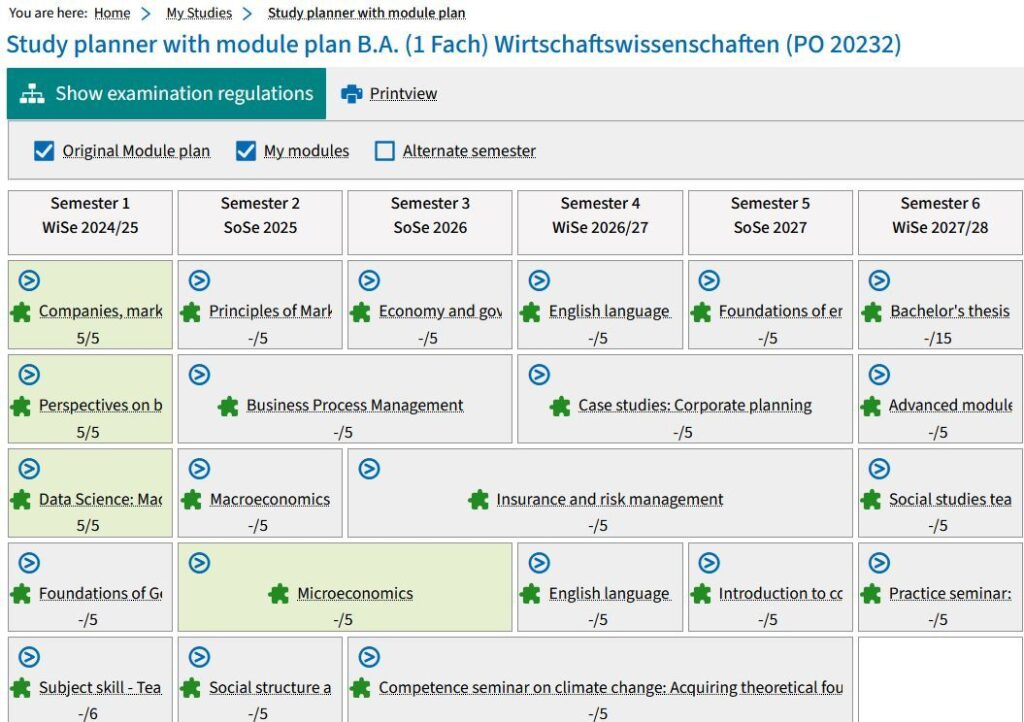
Below the title of the module you can see how many ECTS credits the module is worth (after the slash) and how many ECTS credits you have already achieved in the module (before the slash).
If you have not yet registered for a module, it will be highlighted in gray. If the module is highlighted in green, this means that you have already started the module and that you have registered for at least one achievement in this module.
The list of modules in the module plan is for informational purposes only and has no legal relevance.
Registering for, withdrawing from and changing registrations for examinations
You can only register for, withdraw from and change your registration for examinations during the relevant registration and withdrawal periods.
Confirmation that you have successfully registered, withdrawn or changed your registration is sent from campo by email to your official FAU email address. Please check your mailbox regularly.
In the study planner, you can register for examinations during an active registration period. To do so, proceed as follows:

When you click the “register” button on the right of the examination, the legal remedy notice is shown.
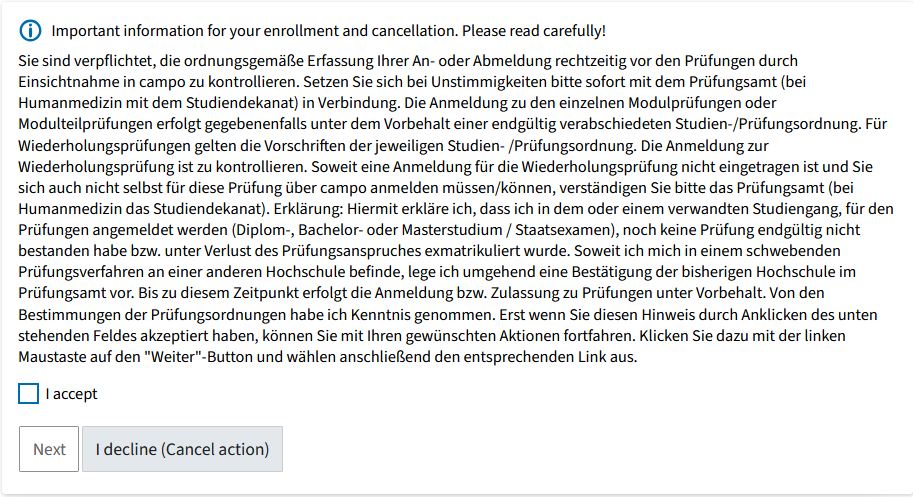
Read this carefully and click the checkbox to acknowledge your agreement.
Click “Next” to go to the registration screen:
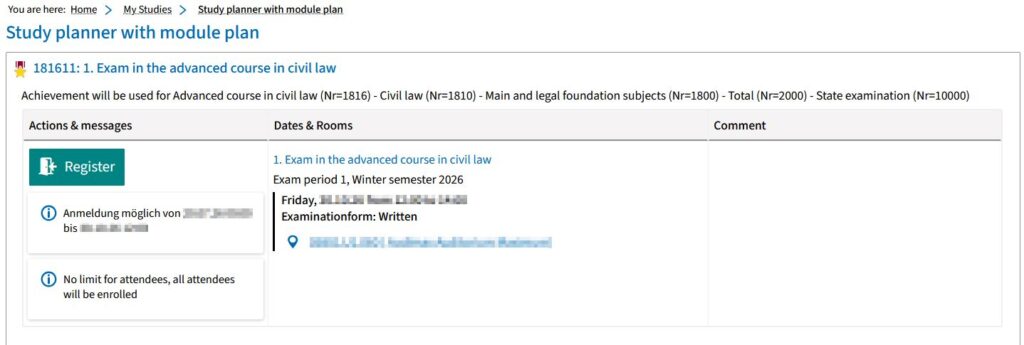
Below the ID number and name of the examination, you can see where the examination will be shown in the achievements hierarchy and when you can register for the examination. Below, you can see the semester, examination format and examiner for the selected examination.
After checking that you have registered for the correct examination, you can confirm by clicking “register”.
Once you have registered successfully, a green message box is displayed with a message to confirm that you have changed your registration status.
If the registration failed or the examination is missing altogether, please contact the Examinations Office, the organizer of the examination or technical support as soon as possible (within the registration period).
An overview of which examinations you have already registered for is available under “My Studies”, followed by “Show my enrollments” (see the section “Where can I check what I have already registered for?”).
First, select “My studies” in the main menu and then choose “Show my enrollments”.
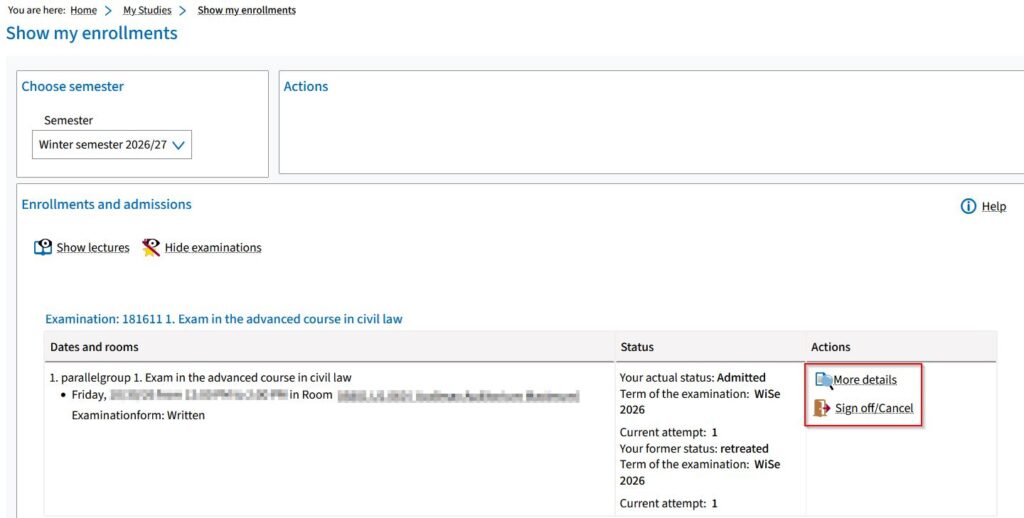
In this section, you can find an overview of all examinations and courses that you have registered for in the semester. Clicking “More details” next to each examination will take you to the detailed view. From this screen, you can also click on “Sign off/cancel” to change or withdraw from examinations.
You can save an overview of the examinations you have registered for by downloading the PDF document “Registered examinations” that is found in “My Studies” followed by “Transcript”. In this section, the various “Documents” are listed under the option “Study history”.
You have two options for de-registering from an examination. Apart from the option described above from the “My enrollments” screen you can also de-register from an examination in the current semester in the study planner.

As a rule, students can only de-register for examinations up until the 3rd working day before the date of the examination. Please refer to the relevant examination regulations for exceptions.
If you have the choice of several examination dates, you can change your examination registration to an alternative date within the examination registration period.
You do not need to de-register from the examination, you can just click “Change selection”. This will change your registration for the selected examination in a single step without you having to de-register and register again for the examination.
Registering for electives
Under electives, you can find all subjects offered across the university, such as language courses for students of all faculties and key qualifications.
Please select the option “Register for electives” under “My Studies” to register for examinations.
This takes you to a search screen:
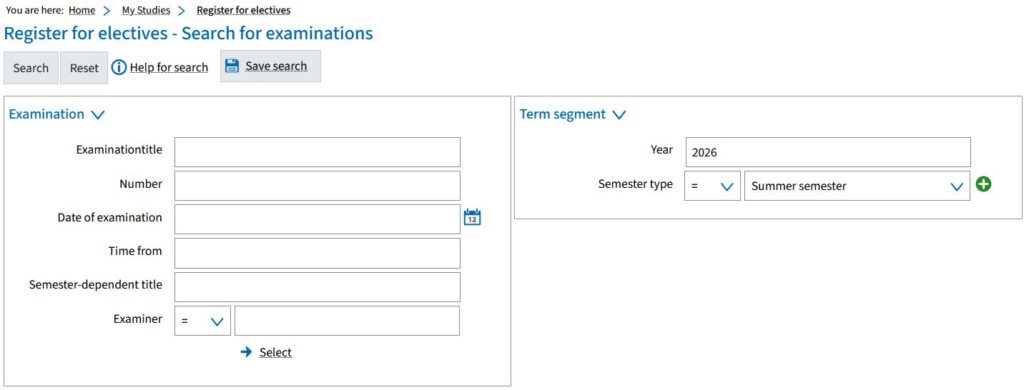
Please make sure to select the correct semester.
At FAU, more than 500 electives are offered each semester. If you are unsure which is the correct examination, you can ask your examiner for the specific title and number.
Click on “search” to see the results based on the criteria you have entered.
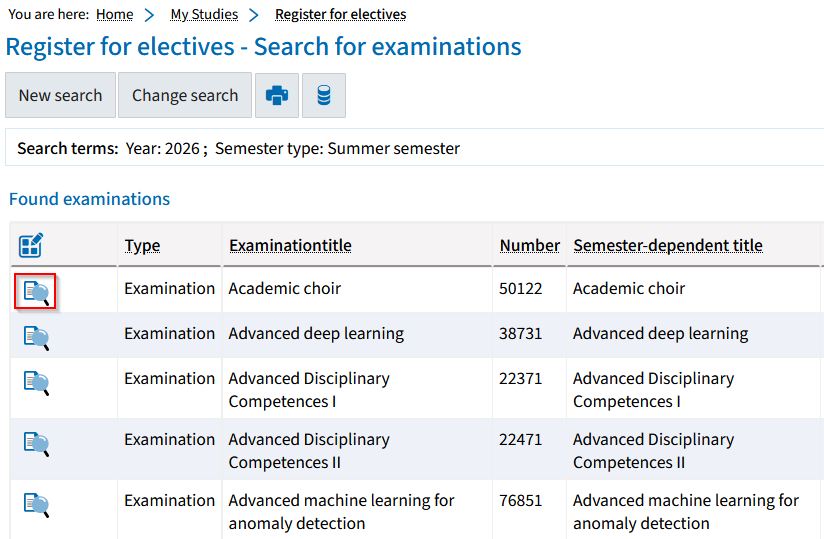
Clicking on the magnifying glass icon takes you to the detailed view for the examination, where you can register like normal during the registration period using the green button.
After you have registered, the elective is listed in the study planner under level 77777 Additional achievements.
You should register for examinations to check Latin proficiency via the study planner. Select “additional achievements” and then “show structure”.

Enter “Latin” in the search box.
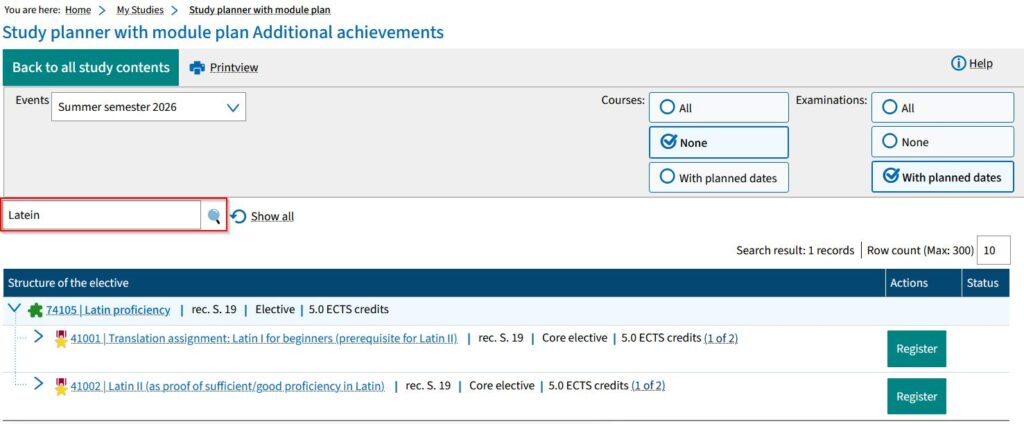
You can then register as normal via the green “register” button.
Special cases for Erasmus students
As an Erasmus student, you can generally choose from more courses and examinations than are available in the normal curriculum. However, as the number of courses available to you makes the study planner load slowly, there are two other ways you can register for examinations:
As an exchange student, you can register all examinations as an elective.
Ask your examiner for the examination number and follow the instructions for registering for an examination for an elective.
You can then register for, change or de-register from examinations in the same way as regular students.
Ask your lecturer for the module number, examination number and title of the examination.
From the main menu select the menu path “Studies offered”, followed by “Module descriptions” and “Search in module descriptions“.
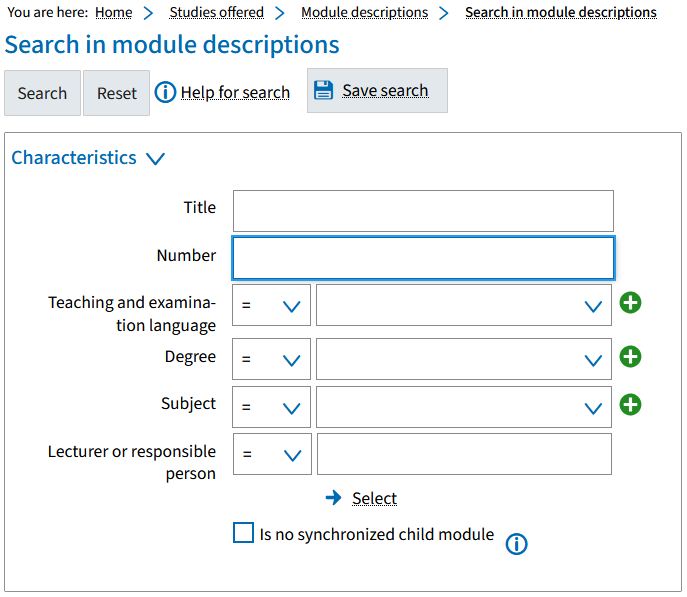
Enter the number of the module in the search box:
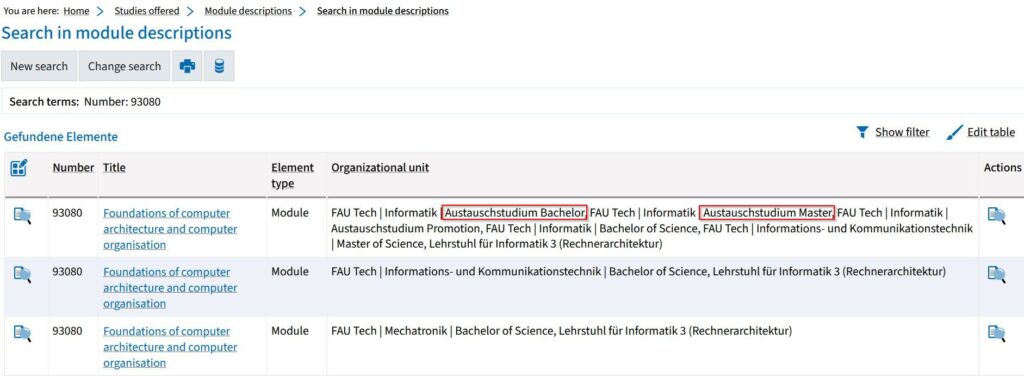
Clicking on “search” gives you a list of the modules that match your search. Choose the module where “Austauschstudium Bachelor” or “Austauschstudium Master” is listed under organizational unit and click on the magnifying glass icon.
In the screen that opens, select the tab “Lectures and examinations”:
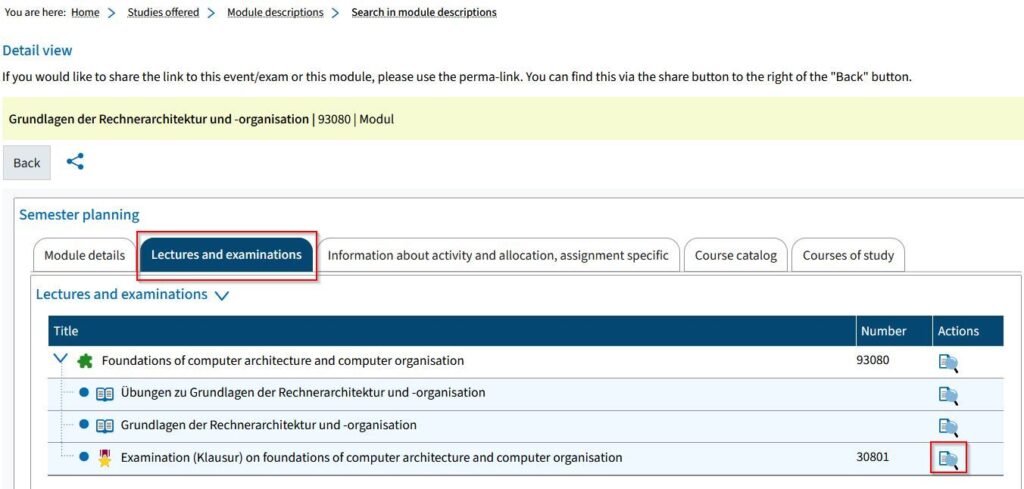
Click on the magnifying glass icon next to the examination. Examinations are marked with a star icon on a red ribbon. In the screen that opens, there is a button you can click on to register.
You can then register for, change or de-register from examinations in the same way as regular students.
If you have any difficulties registering for examinations, please write an email to campo@fau.de during the examination registration phase, giving as many details as possible about the examination in question.
FAQ
There are various reasons why your examination registration may fail. Make sure that your device is connected to the internet, an up-to-date browser version is installed and use a PC or a laptop as far as possible.
In order to document that you tried to register for the examination within the deadline, please contact the Examinations Office, the organizer of the examination or technical support as soon as possible (within the registration period). When writing an email, please describe the error as accurately as possible, attaching screenshots if applicable.
Errors reported after the end of the registration period will be considered as a failure to register.
After the end of the examination registration period, the examiner can decide at their own discretion whether you can still be admitted to the examination although the registration period has expired. Please contact the examiner directly.
If you fail to attend an examination that you have registered for, the examination is graded as having been taken and failed.
After the withdrawal period has ended, examiners can still de-register you from the examination for good cause. This is equivalent to you withdrawing from the examination. In this case, please contact the authorized examiner as soon as possible.
Campo is only used to register for examinations. You should register for lectures in StudOn.